A timer the room can see over your Keynote slides
Anything on Keynote's presenter display stays on your own screen. Fadeclock sits on the slides themselves, in one corner, so everyone in the room knows when the activity ends.
Version 0.1. The timer, breaks and music are free. Pro adds start buttons for HTML slides and web pages.
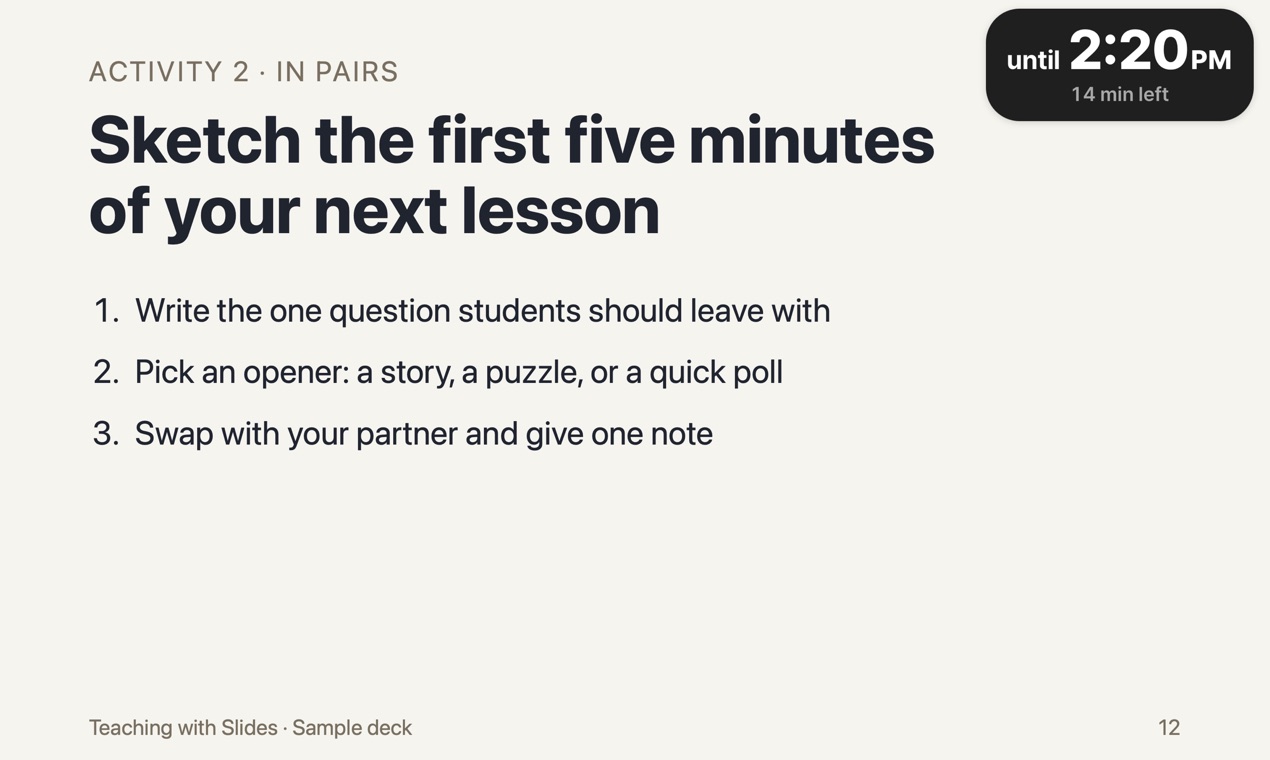
Start a timer without leaving the slideshow
You don't need to exit presentation mode to set a timer. Fadeclock's shortcuts work from any app, including a full-screen Keynote slideshow.
- Open Fadeclock once before class, then play your Keynote slideshow as usual.
- When you reach an activity slide, press ⌃⌥5 for five minutes. Each extra press adds five more. ⌃⌥1 and ⌃⌥0 add 1 or 10 minutes.
- The capsule appears in the top right corner and reads, for example, until 2:20 PM, with the minutes left underneath.
- Keep presenting. Clicks outside the capsule go straight to your slides.
The shortcuts need no Accessibility permission. If another app already uses one of the keys, the timer window tells you.
On the projector, not just on your laptop
When an external display is connected, the timer shows there. You can also pick the display yourself. Drag the capsule to another corner if it covers something on a slide; Fadeclock remembers the spot for each display.
What the room sees as time runs out
- From five minutes left, the end time turns orange.
- At the end, the whole capsule turns orange and says Time's up. One chime plays. ⌃⌥X ends the timer.
- Need two more minutes? Press ⌃⌥1 twice. The end time moves with it. ⌃⌥⇧1 takes a minute away.
- If a slide needs the whole screen, shrink the capsule to a small dot. It keeps counting down.
What we have and haven't tested
Fadeclock has been tested over Keynote in presentation mode. The Pro start buttons are links for HTML slides and web pages; we haven't tested them as links inside a Keynote file, so in Keynote, use the shortcuts.
Before you download
- Mac only, macOS 13 or later. There is no Windows version.
- Fadeclock is not notarized by Apple. The first time you open it, macOS blocks it and you allow it in System Settings. See the steps.
- If your Mac is managed by a school or company, that option may be turned off, and Fadeclock will not open on that Mac. The download is free, so check this before you buy anything.
- Tested over Keynote in presentation mode. PowerPoint and Google Slides haven't been tested yet.
- Built for Apple silicon and Intel Macs, but not yet run on an Intel Mac.